Documentation
Elements
- <a>
- <aside>
- <assessment>
- <author>
- <backcover>
- <blockquote>
- <body>
- <bodymatter>
- <caption>
- <code>
- <cover>
- <dd>
- <dl>
- <document>
- <dt>
- <em>
- <figure>
- <figureGroup>
- <frame>
- <frontcover>
- <frontmatter>
- <hd>
- <img>
- <input>
- <jacketcopy>
- <legend>
- <li>
- <line>
- <linegroup>
- <list>
- <meta>
- <metadata>
- <note>
- <noteRef>
- <number>
- <p>
- <page>
- <poem>
- <pullquote>
- <rearmatter>
- <section>
- <source>
- <span>
- <sub>
- <subtitle>
- <sup>
- <table>
- <tbody>
- <td>
- <tfoot>
- <th>
- <thead>
- <title>
- <tr>
Nieuw Nederlands
7.0 FLEX
Book structure
Table of contents
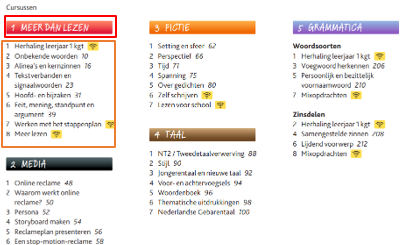
The table of contents consists of two parts: themes and courses.
- Process the themes and courses in order of page number in the table of contents. Write out the colored words with a colon in between.
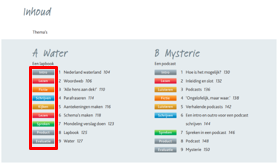
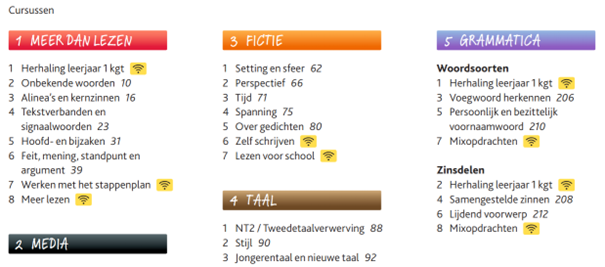
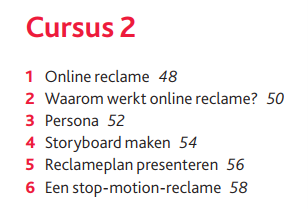
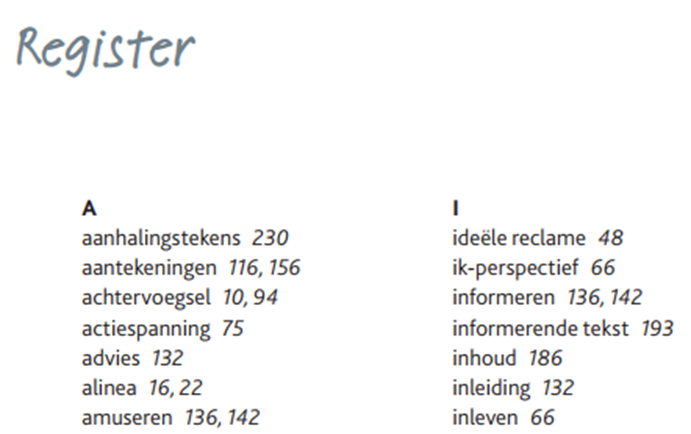
- Process the heading in the small table of contents at the beginning of each chapter with <hd> (without level). Process table of contents within a <list> and page numbers in <a>.
Sectioning
Use the table of contents to determine the sectioning structure. See Sectioning for more information.
- New sections are introduced by headings at the top of a page. For example:
<section level="1" role="chapter">
<hd level="1"><number>1</number> MEER DAN LEZEN</hd>

<section level="2" role="chapter">
<hd level="2"><number>2</number> Onbekende woorden</hd>

- Process the last chapter as follows:
<section level="1" role="chapter">
<hd level="1"> Handig!</hd>
<section level="2" role="subChapter">
<hd level="2"><number>1</number> Feedback geven en ontvangen</hd>
Headers


- When the level-1 header at the beginning of the chapter matches the title of the level-2 subchapter, process this level-2 header with:
<hd level="2">§ 1 Apps</hd>


- When the level-1 header at the beginning of the chapter don’t match with the title of the level-2 subchapter, process this level-2 header with:
<hd level="2">Introductie: § 1 Mens en dier</hd>
Frames
Use <frame> in case of green theory-boxes, text blocks and redlined blocks.

- Process “Theorie: video-uitleg” within the title with an inline image (see example below):
<frame>
<title>Theorie: video-uitleg <img  /></title>
<hd>Hoofd- en bijzaken</hd>
<p>…</p>
</frame>
/></title>
<hd>Hoofd- en bijzaken</hd>
<p>…</p>
</frame>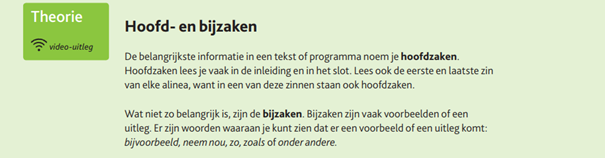
- Do the same in the following example and similar:
<frame>
<title>Tekst <number>4</number></title>
<hd>Bloedgeld</hd>
<p>..</p>
</frame>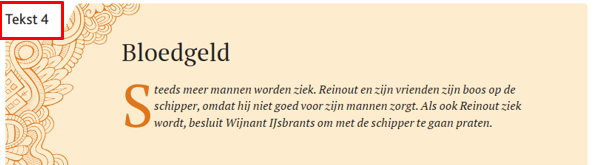
Aside
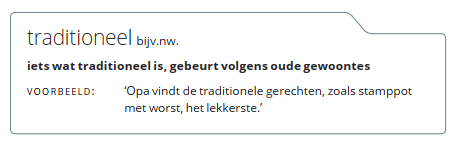
Process boxes (see examples below and similar) at the side of the page as <aside>:
<aside>
<hd>traditioneel bijv. nw.</hd>
<p type="precedingEmptyLine" fontStyles="bold"> iets wat traditioneel is, gebeurt volgens oude gewoontes</p>
<p type="precedingEmptyLine">VOORBEELD: ‘Opa vindt de traditionele gerechten, zoals stamppot met worst, het lekkerste.’</p>
</aside>

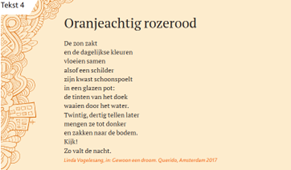
Poem
Look out for poems throughout the book.
Process them with <poem>.
Assessments
Input
- Don’t use
<input>in cases of multiple choices, but process it with a slash within <li>. See the example below and similar.
For example:
<li><number>17</number> Kies de juiste antwoorden. Jos en het Rode Kruis zijn het <em fontStyles="bold">wel / niet</em> eens met elkaar over het halen van een EHBO-diploma. Je kunt dat goed lezen in alinea(’s) <em fontStyles="bold">1 / 2 / 3 / 4 / 5 / 6 / 7</em>.</li>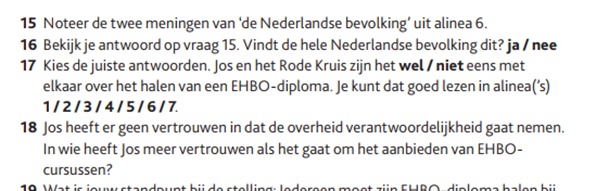
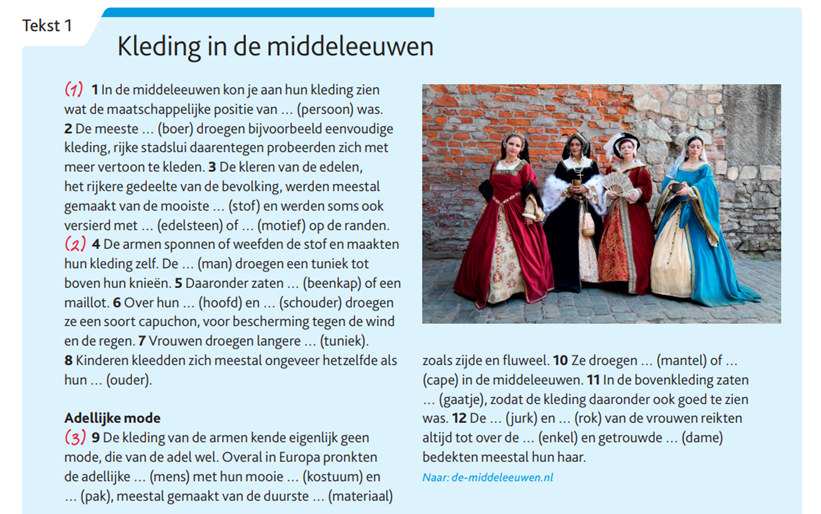
- Use <input type=”text”/> in cases of fill-in exercises
For example:


Numbers
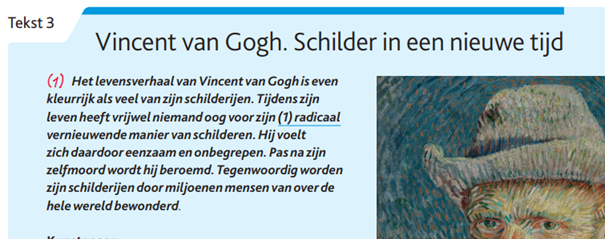
- Process paragraph numbers between brackets, when processed in <p> (no linegroups):
<frame>
<title>Tekst <number>3</number></title>
<hd>Vincent van Gogh. Schilder in een nieuwe tijd</hd>
<p>(<number>1</number>) Het levensverhaal van… </p>
</frame>
- Process the pagenumbers in the register within an anchor <a>.
Table
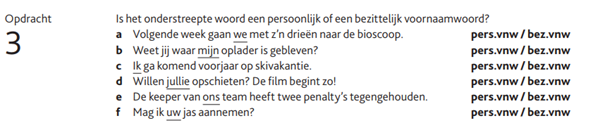
Process examples below and similar with <table>:
<assessment>
<p>Opdracht <number>3</number></p>
<p type="precedingEmptyline">Is het onderstreepte woord een persoonlijk of een bezittelijk voornaamwoord?</p>
<table>
<tr>
<td>a</td>
<td>Volgende week gaan <em fontStyles=”underline”>we</em> met z’n drieën naar de bioscoop</td>
<td>pers.vnw/> / bez.vnw</td>
</tr>
…
</table>
</assessment>
NB: Don’t use <title> in <assessment> when there is no obvious title, see Assessments – MONET.
NB: Process a <p type=precedingEmptyline”> after every “Opdracht” + <number> (when the “Opdracht” + <number> follows with a <p>.)
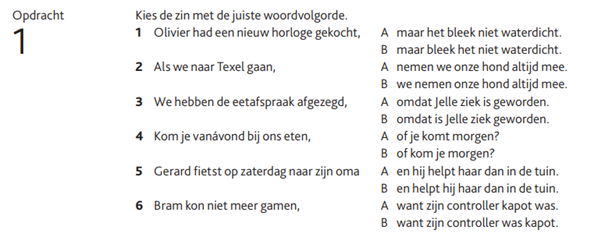
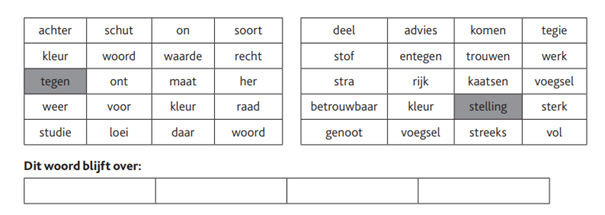
- This book contains a lot of puzzles. Process all the puzzles as an image, except for the kind of puzzles you see below. Process them in a <table>.
List
Process the words followed by “Kies uit” as a list without bullets:

Images/Figures
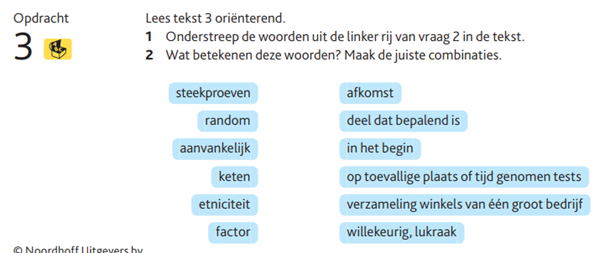
- The example below (and similar) are matching questions. Process them as an image.
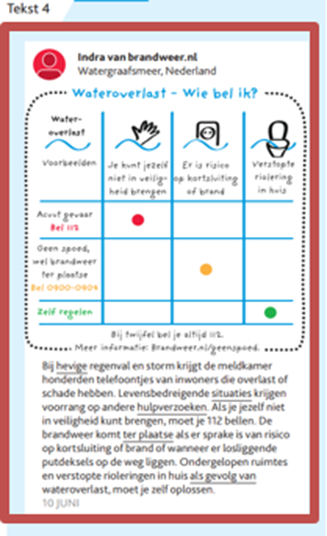
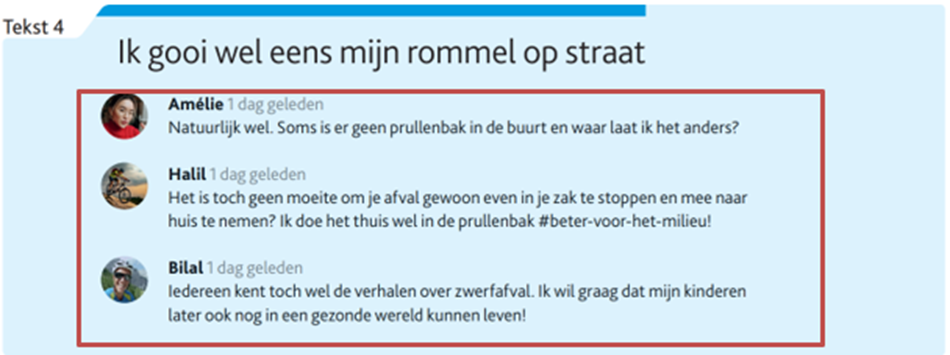
- Process social media posts (see example below and similar) as one image. Capture the text within the image.
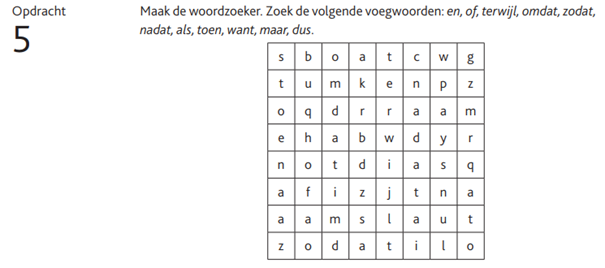
- Process puzzles, fill-in exercises and icons as an image:


- Process multiple images in a <figuregroup>, as follows:
<figureGroup>
<figure>
<img alt=”” role=”” src=”” />
<caption>1</caption>
</figure>
<figure>
….
</figure>
</figureGroup>