Documentation
Elements
- <a>
- <aside>
- <assessment>
- <author>
- <backcover>
- <blockquote>
- <body>
- <bodymatter>
- <caption>
- <code>
- <cover>
- <dd>
- <dl>
- <document>
- <dt>
- <em>
- <figure>
- <figureGroup>
- <frame>
- <frontcover>
- <frontmatter>
- <hd>
- <img>
- <input>
- <jacketcopy>
- <legend>
- <li>
- <line>
- <linegroup>
- <list>
- <meta>
- <metadata>
- <note>
- <noteRef>
- <number>
- <p>
- <page>
- <poem>
- <pullquote>
- <rearmatter>
- <section>
- <source>
- <span>
- <sub>
- <subtitle>
- <sup>
- <table>
- <tbody>
- <td>
- <tfoot>
- <th>
- <thead>
- <title>
- <tr>
Input
The <input> element is used to define an input field in an assessment or interactive learning environment. It is a mostly visual cue to let readers no where in print input is requested, typically within exercises or quizzes. The <input> field will serve no functional goal. It is only there to serve as a cue to let readers no that there is input expected of them.
Child Elements
The <input> element does not contain any child elements, meaning it is a self-closing tag used within other elements that handle structured content (e.g., <assessment>).
Usage Guidelines
<input>should be placed within a structured element where user responses are expected.- Ensure the
typeattribute is correctly set based on the expected user input. <input>is a self-contained element and should not enclose any child content.
Example Usage
Text Input
Here are some examples of how <input> might be used in different scenarios:
<assessment>
    <p>What is the capital of France?</p>
    <input type="text"/>
</assessment>
The type="text" suggests that a free-text answer is expected.
Examples

Multiple-Choice Input
<assessment>
    <p>Which of the following is a mammal?</p>
    <list type="unordered">
        <li><input type="checkbox"/> Dog</li>
        <li><input type="checkbox"/> Eagle</li>
        <li><input type="checkbox"/> Shark</li>
    </list>
</assessment>
Here, type="checkbox" indicates a multiple-choice selection. We make no distinction between radiobuttons or checkboxes and between single selections or multiple selections. In any case, use type="checkbox".
Text-Area Input
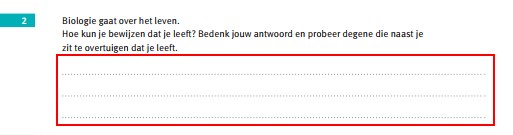
The textarea type shows users where input multi-line text is expected, making it suitable for cases where more extensive responses are required compared to a standard text input. Unlike a simple text field, a textarea shows longer content is expected, such as summaries, descriptions, or detailed answers.
<assessment>
    <p>Please give a summary to the text:</p>
    <input type="textarea"/>
</assessment>
Examples
Prefilled input
Sometimes part of an assessment is already (partly) filled. In this case we can use the prefilled attribute.
<assessment>
    <p>What is the capital of France?</p>
    <input type="text" prefilled="Paris"/>
</assessment>
Best Practices
- Always specify the correct type so that it is clear what kind of answer is expected.
- Place
<input>inside a logical structure like<list>or<assessment>where user responses are expected. - Use
<input>in conjunction with clear instructional text (<p>) to guide users.
Print/code examples
Inline text input
<assessment>
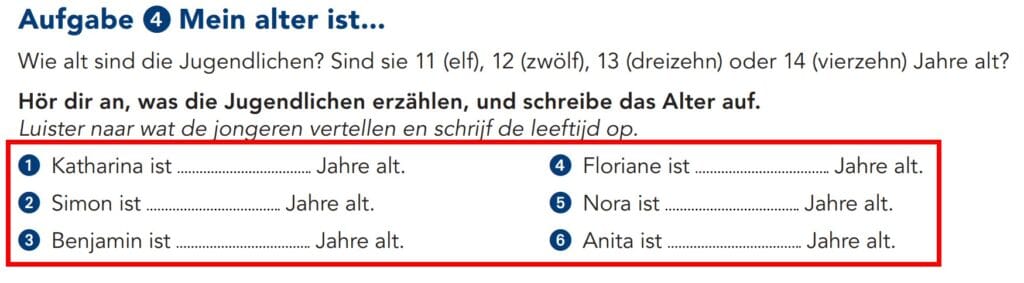
   <title><number>Aufgabe 4</number> Mein alter ist...</title>
   <p>Wie alt sind die Jugendlichen? Sind sie 11 (elf), 12 (zwölf), 13 (dreizehn)    oder 14 (vierzehn) Jahre alt?</p>
   <p fontStyles="bold">Hör dir an, was die Jugendlichen erzählen, und schreibe das Alter auf.</p>
   <p xml:lang="nl" fontStyles="italic">Luister naar wat de jongeren vertellen en schrijf de leeftijd op.</p>
   <p><number>1</number> Katharina ist <input type="text"/> Jahre alt.</p>
   <p><number>2</number> Simon ist <input type="text"/> Jahre alt.</p>
   <p><number>3</number> Benjamin ist <input type="text"/> Jahre alt.</p>
   <p><number>4</number> Floriane ist <input type="text"/> Jahre alt.</p>
   <p><number>5</number> Nora ist <input type="text"/> Jahre alt.</p>
   <p><number>6</number> Anita ist <input type="text"/> Jahre alt.</p>
</assessment>